1 Introduction to Google Colaboratory
Through the course we will use Google Colab as it makes working with Python a little bit easier - as we can skip the step of installing and managing Python on our local machines.
Signing in
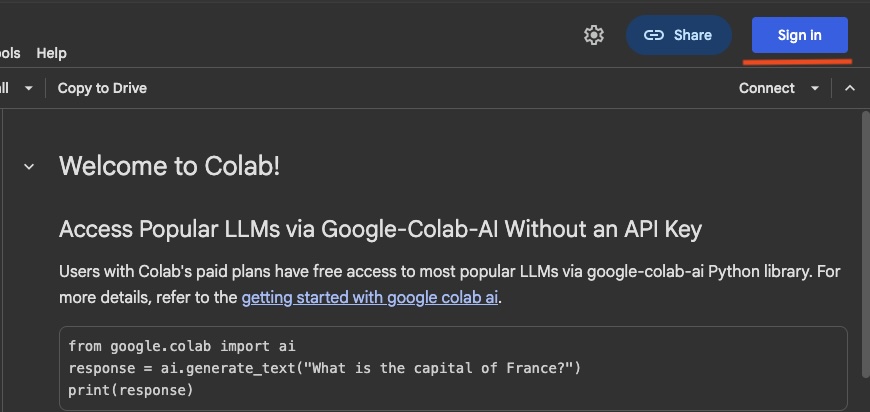
In order to run the code in a notebook on Google Colab you will need to sign in with a google account.
Running cells

Once you’re signed in you can edit and run cells. The basic way to run cells is by clicking on the little arrow icon as shown in the image.
A few keyboard shortcuts can make the experience smoother
- Ctrl-EnterCtrl-Enter: Runs the selected cell.
- Shift-EnterShift-Enter: Runs the selected cell and goes to the next cell.
Saving the notebook
To save the notebook you have two options.
Download and save locally
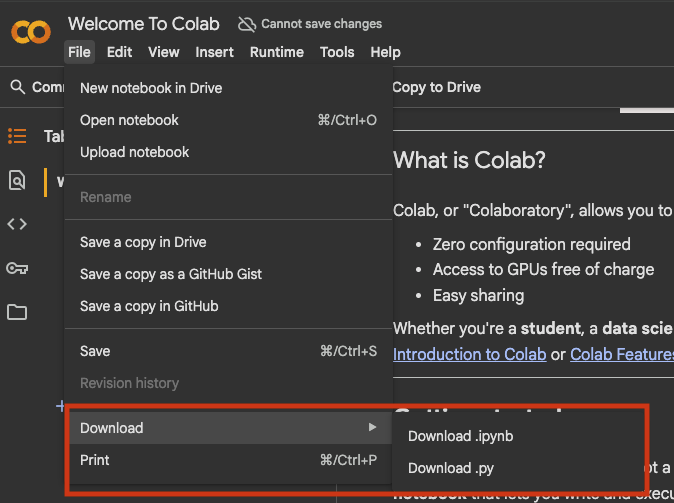
You can download the notebook to your computer and save it locally. It is a good idea to make a folder for the course and store all of them there with appropriate names.
Save in Google Drive
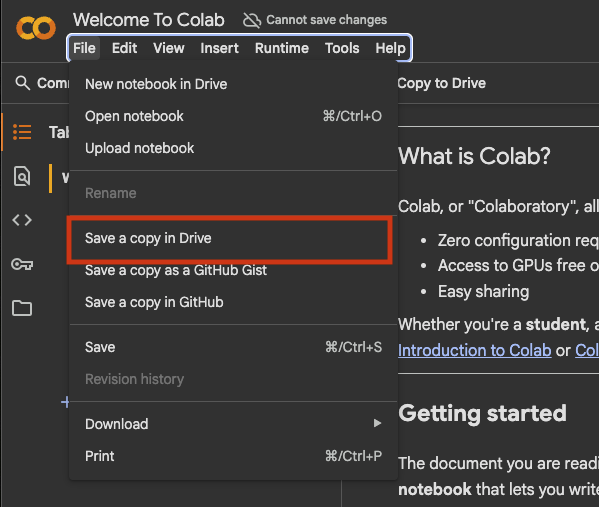
You can also save the notebook to Google drive - again it’s a good idea to make a folder specifically for the course and save it there.
Loading a notebook
You can also open a notebook stored on your computer or in drive.
Loading from your computer
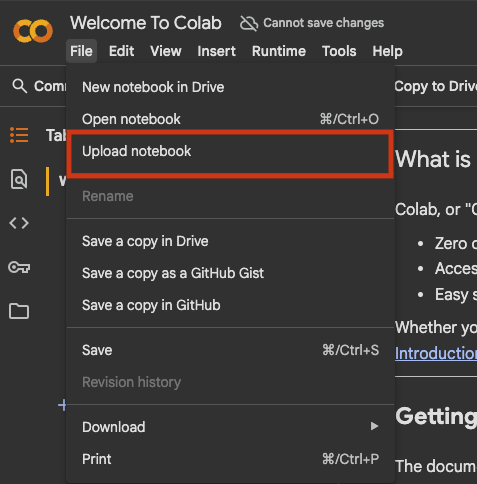
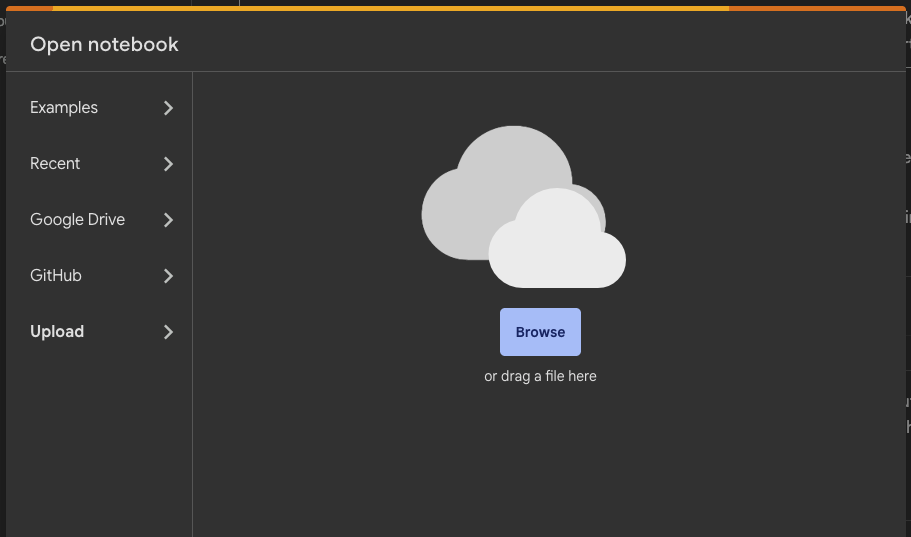
You can upload a notebook by clicking on the “Upload Notebook”-button under the “File”-menu, this opens a window where you either drag & drop a notebook or open click the button to open the file browser and select the notebook.
Loading from Google Drive
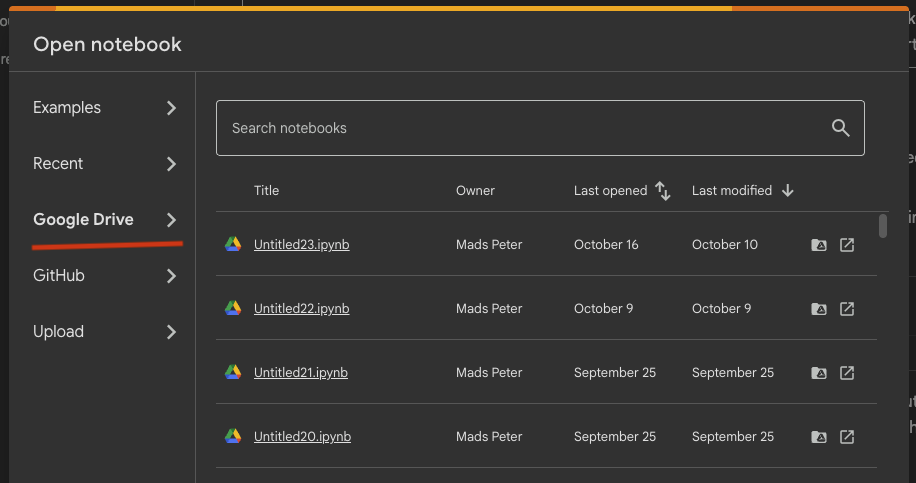
Similarly you can select a notebook from Google drive, again starting from the “File”-menu, selecting open notebook (or with shortcuts Command-OCommand-O or Ctrl-OCtrl-O).
Disabling AI Assistance
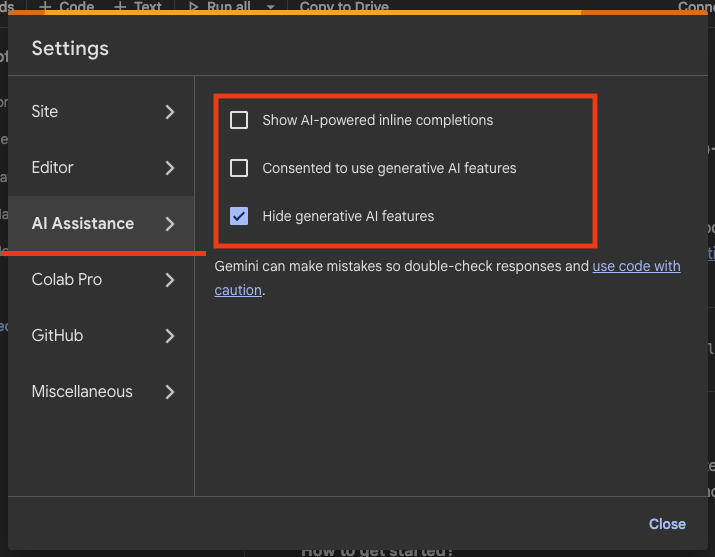
Google Colab has Gemini AI features that may suggest code completions and other AI-generated content - these are not particularly helpful in order to learn and are not allowed at the exam. To disable them open the settings panel, like shown below
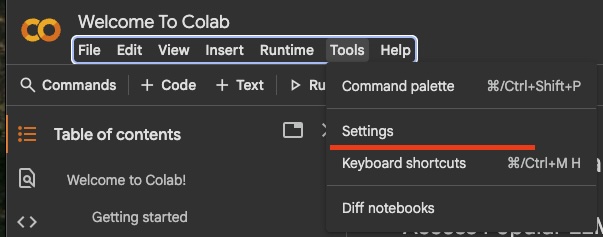
Navigate to “AI Assistance” and set the toggles to off as shown below