Course software
Things you will need
Overview
In the course we will work with a few programs and you will need to install them on your computer. These are
- A code/text editor: I suggest VS Code, but you can use whatever if you have a different preference.
- A terminal: To use command-line tools.
uv:uvis a Python package manager.git: git is the best version control tool that exists.
Some1 instructions/exercises/etc are written assuming unix/bash syntax and will not work directly on a Windows machine. My suggestion is to use Windows Subsystem for Linux (WSL) to get a unix workspace.
See these tutorials for more information
If you insist on using Windows without WSL then you will need to be comfortable figuring out how to translate commands and installation instructions to Windows yourself. I do not recommend this path.
Details
Terminal
Most of the work we will be doing in the course will happen in a Unix-like shell (such as bash or zsh), so you will need a terminal. If you decide to use the VS Code editor the built-in terminal is excellent and you will not need an additional program regardless of your operating system. If you choose another editor you may, depending on the chosen editors features, need an additional program.
- Windows: As mentioned, on Windows I recommend using WSL which will come with a terminal suitable for the distro you’ve picked.
- MacOS: MacOS comes by default with a terminal called
Terminalthat will get the job done. - Linux: All self-respecting Linux distros come with pre-installed terminal.
- Other: If you do decide to install a separate terminal Warp is pretty cool.
Editor
We will need somewhere to write and edit code, that is the job of the editor. You can pick whatever you’re most comfortable with, however I do recommend using an editor with these features:
- Code highlighting for various language
- A built-in terminal
- A Python language server (When Word underlines a word with red that is the English/etc language servers doing, it is very helpful to catch typos/general mistakes in code in a similar manner.)
My recommendation is VS Code as it includes all of these and more.
uv
uv is a Python package and project manager. It is a command-line interface (CLI) program and is rather appropriately installed through the command line, using the command:
curl -LsSf https://astral.sh/uv/install.sh | shThis command downloads and runs an installation script.
git
You will need git for version control and project management. On MacOS and Linux (including Linux through WSL) git is installed by default. If it is not installed, or you just want a newer version then you can install from git-scm.com.
Bash: The language of the terminal
You may or may not be familiar with bash (or its cousins fish, zsh) - if not you will be after the course. This section is intended as a mini-introduction to the terminal and bash.
At its heart the terminal is a text-based way of interacting with the computer, as opposed to the graphical user interface way that is typical for most other programs.
A terminal is a text-based interface where you type commands. Inside the terminal runs a shell, which is the program that interprets and executes those commands.
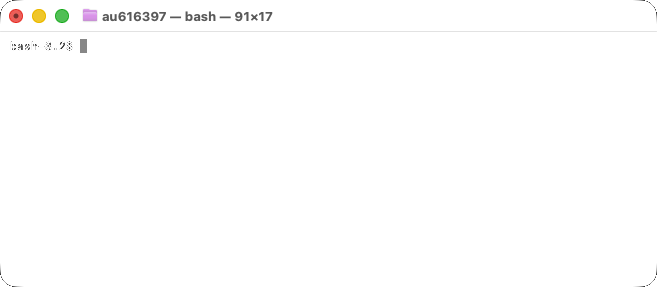
Figure 1 shows a basic terminal window, showing the prompt bash-3.2$ and the cursor █.
We will use terminal through short commands, such as ls (short for list) that lists files and folders, see Figure 2.
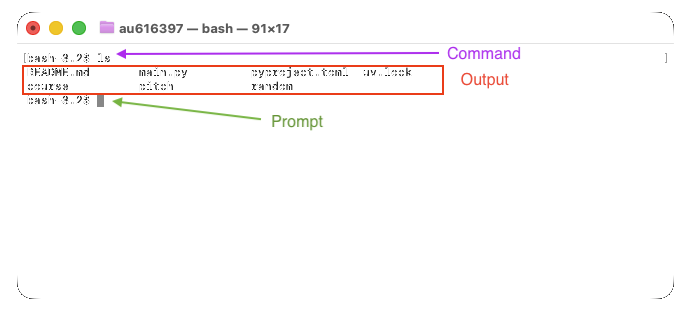
ls in the terminal
The tables below show a starter kit of commands that covers what will be necessary through the course
Files & Directories
| Command | Meaning | Example |
|---|---|---|
mkdir DIR |
Create a directory | mkdir results |
touch FILE |
Create an empty file | touch notes.txt |
cp SRC DST |
Copy file or directory | cp a.txt b.txt |
mv SRC DST |
Move or rename | mv old.txt new.txt |
rm FILE |
Remove a file | rm temp.txt |
rm -r DIR |
Remove directory (recursively) | rm -r build |
readlink -f |
Print full path of file or directory | readlink -f data.txt |
The rm command deletes, files do not end up in a trash can - so it should be used carefully.
Inspecting files & variables
| Command | Meaning | Example |
|---|---|---|
cat FILE |
Print file contents | cat README.md |
less FILE |
View file page by page | less data.csv |
head FILE |
Show first lines | head data.csv |
tail FILE |
Show last lines | tail log.txt |
echo |
Print what follows. | print cake | |echo $VAR| Print the contents of a variable |echo $PATH` |
Some commands open an interactive program that takes over the terminal. Follow the on-screen hints to exit (for example, press q in less).
Programs & environments
| Command | Meaning | Example |
|---|---|---|
which CMD |
Show command location | which python |
python --version |
Show Python version | python --version |
uv --version |
Show uv version | uv --version |
git status |
Git repository status | git status |
Keyboard shortcuts
| Shortcut | Effect |
|---|---|
↑ / ↓ |
Previous / next command |
Tab |
Auto-complete |
Ctrl+C |
Cancel a running command |
Ctrl+D |
Exit the shell |
Exercises
Exercise 1: Create course workspace
Open a terminal, start by using pwd to see the current working directory. Use cd to navigate to a directory of your choosing, though not one managed by a file synchronization service like Dropbox or OneDrive.
In this directory use mkdir to make a new directory that will be the home for your work in this course. This could for example be csp_course.
Exercise 2: Make files and directories
Using the terminal, in the csp_course directory make another directory called playground and navigate into it. Use touch to make a file called example.txt. Use an appropriate command to view the files in the playground/-directory.
Run the command
echo "Hello, this is a file called example.txt" > example.txtUse cat to view the contents of the example.txt file.
The > tells the shell to redirect the output of the echo command to the file example.txt.
Exercise 3: Copy files and inspect output
Using the terminal, in the playground/ directory use cp to make a copy of the example.txt file called another_example.txt.
Use cat to confirm that the contents of example.txt and another_example.txt are the same. Then run the command
for i in $(seq 1 50);
do
        echo Line $i
done > another_example.txt
Don’t worry about the details of this command, it’s just to generate some content in the file.
Now use tail to see the last 10 lines of another_example.txt and head to view the first 10 lines.
Exercise 4: Open a file in the editor
Open another_example.txt in the editor you’ve installed. If you’re using VS Code then you can simply use the command code another_example.txt to open the file.
Exercise 6: Read the ls manual
Use man ls to view the manual for the ls command. This will conjure forth a lot of text, you are not expected to read or understand all of it, just scroll around and find an option or flag for ls and try using it.
Ask your favourite LLM about common options or flags for ls and try one of its suggestions.
man is another case of a command line tool opening as an interactive program, as we saw with less. Again press q (quit) to exit the interactive mode.
Exercise 7: Verify uv installation
Confirm you’ve installed uv correctly by running the command
uv --helpExercise 8: Verify git installation
Confirm you have git installed by running
git --helpFootnotes
Probably most, if not all.↩︎