flowchart LR
A[Script directory]
B[Standard library]
C[lib-dynload]
D[site-packages]
A --> B
B --> C
C --> D
Python, dependencies & virtual environments
Installing without fear
A write-up on the inner-workings of Python, Python dependencies and virtual environments.
The Python Interpreter
Python is an interpreted language, which means that Python code is read and converted into machine code at run time, rather than being compiled into a standalone executable program. Internally, Python first compiles code to an intermediate form before execution, but this process is handled automatically by the interpreter and is invisible to us the users. The machinery responsible for this is the python interpreter, or python in your terminal/shell/prompt.
Python version
The Python interpreter can be considered a command-line interface (CLI), for example the command
python -VOutputs the version of the current interpreter1, for example
Python 3.13.0Typically, the exact version is not particularly important as long as it is recent enough, but perhaps not too recent. When starting a new project, maintaining an existing one, or looking for a package to use, it is a good idea to think a little bit about the version of Python to use. Luckily, the Python Developer’s Guide has a nice graphic illustrating the status of each version, the figure below is from January 2026
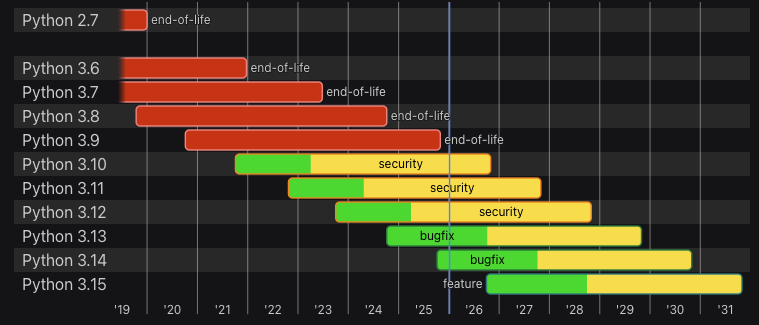
Personally, my takeaways from this are as follows:
- Versions 3.6-3.8: Should be considered dead and I would absolutely not use them for my own projects, and would be very vary of using packages that are limited to them.
- Versions 3.9-3.10: Would not be my first choice for a project, unless a dependency explicitly requires them and I would check the status of that dependency in other ways (e.g. look for recent activity on PyPi or a git repository)
- Versions 3.11-3.13: One of these, probably 3.13, would be my choice for a new project. No concern about dependencies that require or support >3.11.
- Version 3.14: Too new for projects that require a complex set of dependencies as some may not yet support it - potentially leading to annoying conflicts.
The Python REPL
The python CLI is of course more than just a version-printer, it is also the main way of accessing the “Read, Evaluate, Print, and Loop” (REPL). The REPL is started with the command
pythonWhich outputs something like2
Python 3.13.0 (v3.13.0:60403a5409f, Oct  7 2024, 00:37:40) [Clang 15.0.0 (clang-1500.3.9.4)] on darwin
Type "help", "copyright", "credits" or "license" for more information.
>>>
Here the >>> is the computer pushing us to tell it something to do, so for example
>>> 1 + 1 # And 'Enter'
2
>>> print('Hello, world') # And 'Enter'
Hello, world
So the REPL will read and execute any commands given, print the result and loop (wait) for the next set of commands.
Python scripts
The REPL, while useful for playing around, is perhaps the least collaborative way of using Python, luckily the python CLI also executes scripts stored as .py-files, for example
# hello_world.py
print('Hello, world')
python hello_world.py
Hello, worldScripts are perhaps the most common way of using Python code and is extremely powerful, though as we will see later on not always the most suitable way for programs intended for collaboration or extended use.
Dependencies
As seen from the REPL example above, Python can do many things without needing to import additional libaries. However, many features are easier or more convenient when used through an appropriate library. We can view the library ecosystem as consisting of two branches:
- The standard library: Packages that are part of most Python distributions by default.
- External libraries: Packages that are installed seperately, e.g. from PyPi, Conda, Github etc.
A note on terminology
script: A script is a
.pyfile that is intended to be executed from the command line.module: A module is a
.pyfile intended to be imported by other Python code. It typically contains function and/or class definitions.package: A package is a collection of modules, usually organized as a directory, and often distributed and installed together.
library: An informal term for reusable Python code intended to be imported and used by other code. A library may consist of one or more modules and packages.
The terms script, module, package have specific meanings in the world of Python while library is a bit more fuzzy.
The standard library
As mentioned, the standard library is installed along with Python, there are suprisingly many. All of these can be imported and be used without concern, for example
from pathlib import Path # Pathlib is the package name, Path is the class imported

cwd = Path.cwd()
sub_directory = cwd / 'my_sub_directory'
sub_directory.mkdir()
This uses the Path class from the Pathlib library to find the current working directory (cwd) and creates a new directory.
External packages
Much of the power of Python comes from external packages created by the developer community. Python has been fortunate in that many, including scientific, communities have adopted it as the preferred language3, for example
- General scientific programming: NumPy, SciPy, matplotlib, pandas, sympy, IPython
- Machine learning: PyTorch, Tensorflow, Jax, CuPy, Keras
- Bioinformatics: Biopython, PyBioMed, khmer, PyMOL
Among many, many others4. Using these packages, as with the standard library, requires importing them, for example
import numpy as np
A = np.array([1, 2, 3])
However, unlike the standard libary, they need to be installed seperately and if not will lead to errors like
File ".../import_error.py", line 1, in <module>
    import numpy as np
ModuleNotFoundError: No module named 'numpy'
The rest of this note will cover how to install packages and importantly how to manage dependencies in general using virtual environments.
How Python resolves imports
Resolution for a global Python installation
When resolving an import Python looks through a specific, ordered list of locations and the first match wins, the list can be viewed with the code
import sys # A standard library

for path in sys.path:
    print(path)
Assuming that the script is saved as /usr/example/sys_path.py and that the Python interpreter is installed in /usr/lib/python3.11/ such that the interpreter is at /usr/lib/python3.11/bin/python the output will be something like
/usr/example/ # The directory containing the script
/usr/lib/python3.11/ # Standard library
/usr/lib/python3.11/lib-dynload/
/usr/lib/python3.11/site-packages/
Caution
The above is without a virtual environment, which is highly unadvised, being done here only to illustrate how Python importing works.
When importing Python will look through this list starting from the top, the locations searched are thus:
- The directory containing the script, so if for example another script (or module) called
numpy.pyis located in the same directory that will be imported. - Next it is checked if the requested package is in the standard library
- The third path is a little convoluted, it contains compiled resources (such as C-programs) that are part of the standard library that are not written in pure Python - e.g. for performance reasons.
- The
site-packagesdirectory, which is where external packages are typically installed.
You can, in principle, put a file in /usr/lib/python3.11/site-packages/ and it will be importable, however you should never do this. The same is true with using pip, the canonical Package Installler for Python. Tools like pip exist to manage this directory systematically (versions, metadata, uninstallation), but using them globally still shares state across projects.
The reason to avoid /usr/lib/python3.11/site-packages/ is that it is global so any project using that Python interpreter will find packages in that directory. This may not cause trouble immediately but is as good as gaurenteed to if coming back to an old project after having installed or updated packages for other projects.
Resolution in a virtual environment
Virtual environemnts make one critical change to how package resolution happens; it changes the site-packages directory to one specifically for that environment. So the script above, will in a virtual environment located at /usr/example/.venv instead output
/usr/example/ # The directory containing the script
/usr/lib/python3.11/ # Standard library
/usr/lib/python3.11/lib-dynload/
/usr/example/.venv/lib/python3.11/site-packages/ # Now is a subdirectory of .venv
Now packages put in .../site-packages/ are only tied to that virtual environment and have no influence on the global Python installation or other projects using different virtual environments.
Virtual Environments
A Python virtual environment is just a directory containing:
- a Python executable (usually a symlink to the system interpreter),
- an isolated site-packages directory,
- and shell scripts that adjust environment variables so the shell uses that interpreter by default.
However, creating that manually is both time-consuming and error prone, so tools for doing it automatically have been developed.
The venv standard library.
The simplest of these is just using the venv standard library
python -m venv .venvThis will create a virtual environment at .venv (a hidden directory, so you will need ls -a to see it). In order to use the virtual environemnt it needs to be activated
source .venv/bin/activateThis sets the relevant environment variables. Then we use pip to see the packages that the virtual environment contains
pip listwhich in a fresh environment produces something like
Package Version
------- -------
pip     24.2
And additional packages can be installed, also using pip
pip install numpyAfter which we can run pip list again, now getting
Package Version
------- -------
numpy   2.4.1
pip     24.2
Modern tooling: uv
While using the venv standard library works, more modern tooling is now available - namely the excellent uv. With a system-wide5 uv installation a Python virtual environment can be created using
uv venv .uv-venvThe environment is activated the same way as before using source .uv-venv/bin/activate. And packages can be installed using the uv pip interface, like
uv pip install numpyAnd installed packages can be listed
uv pip listproducing
Using Python 3.12.5 environment at: .uv-venv
Package Version
------- -------
numpy   2.4.1
Note that when installing a package using uv pip (or old-school pip) it will install the requested packages and all of the dependencies of that package. In this case, NumPy doesn’t have any dependencies so only numpy is installed but this rather atypical.
uv has many advantages, one being it’s much faster than pip, but more importantly that uv can manage both virtual environments and Python interpreters. For example, to make a virtual environment with a specific Python version
uv venv -p 3.10 .uv-venv310If Pyhhon 3.10 is available on the system it will create the environment, otherwise it will download and install Python 3.10 and then create the environment. This is very useful as manually managing Python interpreters is an exceendingly dull job. We will see later on how uv can also help us manage, build and even publish Python packages.
Command summary
uv commands
uv venv <name> --option
pip or uv pip commands
install: To install one or more packages. The--upgradeflag can passed to upgrade an already install package.uninstall: To uninstall one or more pacakgeslist: To list installed packagesshow: To print information on a specific package (e.guv pip show numpy)freeze: Another way of listing installed packages, typically used to make arequirements.txtfile using a pipeuv pip freeze > requirements.txt
Enviromemnt activation and deactivation
source <venv_path>/bin/activate: To activate a virtual environmentdeactivate: To deactivate the current virtual environment, only available if a virtual environment is active.
Exercises
Exercise 1: Check Python version
Use the command-line to obtain the version of your Python interpreter.
Exercise 2: Sum numbers in the REPL
Use the Python REPL to calculate and print the sum of all the numbers from one to nine.
Exercise 3: Run a Python script
Make a Python script (.py-file) that prints something and run it using the command-line.
Exercise 4: Use a standard library module
Pick a package from the standard library, import and run a function from it. You can do this either in the REPL or in a script.
Exercise 5: Local module import resolution
In an otherwise empty directory create a file called main.py and another called my_library.py. In the my_library.py file put the following function
def my_library_function(x):
    return 2 * x
And in main.py put the following
from my_library import my_library_function

output = my_library_function(2)
print(output)
How does this relate to Python’s import resolution strategy?
Exercise 6: Create a venv and install packages
Make a virtual named venv1 environment using uv, activate it and install matplotlib into it. List all the installed packages of this environment. Why does it contain several packages?
Exercise 7: Create a venv with Python 3.14
Make another virtual environment named venv2 using uv using specifically Python 3.14.
Exercise 8: Import from site-packages
In exercise Section 4.6 you made my_library.py, copy that file into venv1/lib/pythonX.Y/site-packages/ and try to import it either in the REPL or in a script.
How does this relate to Python’s import resolution strategy?
Caution
This is meant as an exercise in understanding Pythons resolution strategy in a virtual environment, it is not generally good practice to do this.
Exercise 9: Shadowing a standard module
In an otherwise empty directory create a file called random.py and in it put
print("This is NOT the standard library random module")In the same directory create a file called main.py and put
import random
print(random)
Run main.py. What happens and why does it happen?
NoteAccidental Shadowing
This is called shadowing and can be very frustrating if done accidentally.
Footnotes
If one is installed and it has been made available to the shell↩︎
The exact output depends on the OS, Python version and how the Python binary was compiled. In this case it shows that it was compiled for macOS (Darwin) using the Clang C compiler.↩︎
Or at least, as a central part of the languages used↩︎
System-wide in this case means not the
uv-package in a Python environment but a standalone installation ofuv. See theuvinstallation guide for more information.↩︎